Studio 1 Web Design
Visit our partner site where we offer logo
design, Los Angeles web design and
search engine optimization services.
  Web Design   Web Hosting   Photoshop Tutorials   Free Fonts   Featured Clients   Book Store  
 
Photoshop Tutorials - Free Fonts
[Home]
[Store]
[Search]
[Sitemap]
[Blog]
[Newest Pages]
[Read Me First!]
[Photoshop Tutorials]
[Canvas Tutorials]
[Corel Tutorials]
[Quark Tutorials]
[Illustrator Tutorials]
[FreeHand Tutorials]
[Drawing Basics]
[Porting Files]
[Free Fonts]
[Font Tutorials]
[Misc Tutorials]
[Animation]
[About Mike]
[Guestbook]
[Gallery]
[Related Sites]
[Resource Directory]
[Add Your URL]
[Downloads]

 
California Home Loans
Hard Money Lenders
Laser Hair Removal
Mailing Lists
Mesotherapy
Private Money Loan
 
    Intermediate  
 
  Improving Image Quality When Rendering Canvas™ Paint Objects - Part Two   Buy Canvas Software!
Books on Canvas
Canvas Training CDs

5. Drag the new paint object off to the side and re-select the vector drawing and click Image > Area > Render... again. This time in the Render Image dialog, enter 144 for the resolution. Use the same settings as before for everything else. Click "OK" to render another paint object.
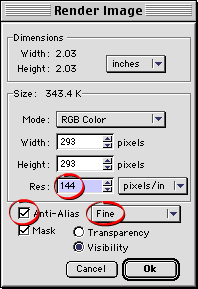
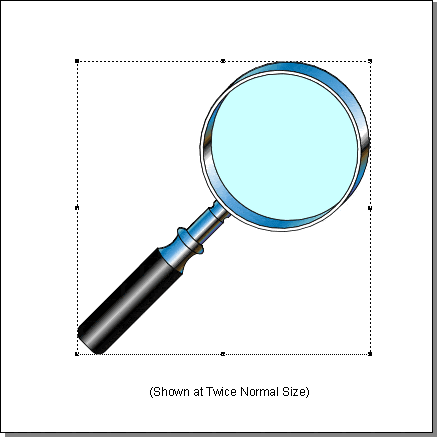
6. This paint object was rendered at twice the resolution as the previous one and has more pixels (four times as many).
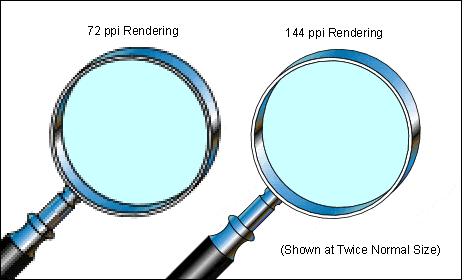
7. When you look at both paint objects side-by-side it is obvious that the one rendered at 144 ppi (pixels per inch) is a higher quality image because it has more pixels. But what will happen if we resample (downsample) it to 72 ppi and give it the same number of pixels as the first one? Will it look better, worse or the same as the first rendering? Let's try it.
8. Select the 144 ppi paint object.
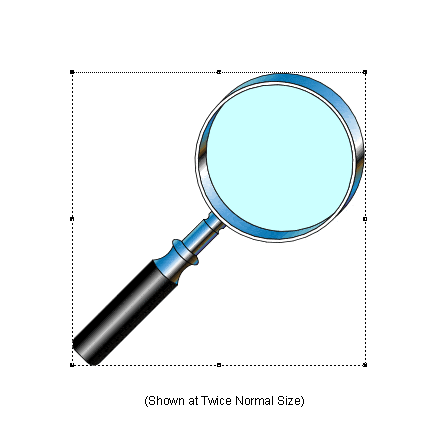
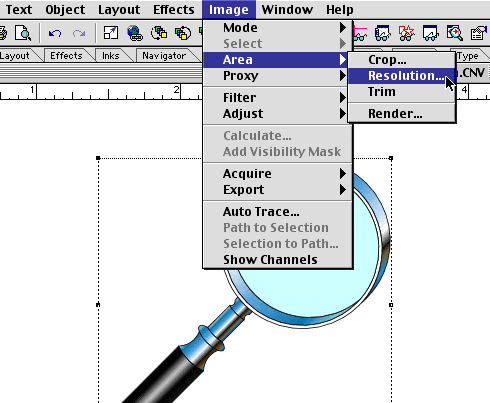
9. Now click Image > Area > Resolution... to resample it.

Click Here To Continue...

 
  Previous   Home    Contact Mike   Related Sites    Next Copyright © 1998 Mike Doughty, All Rights Reserved Legal Notices
Page Last Revised: March 27, 2009
Privacy Policy

