In CorelDRAW 8 you may have a cropped bitmap image
either by importing an EPS file with an embedded clipping
path (using File > Import > PostScript®
Interpreted [EPS]), or by loading a bitmap image and
using the node editing tools to create the cropped outline.
Either way, the mask and the bitmap image are inseparable
and treated as a single object while using CorelDRAW
only. You must export the file as a PDF and open this
PDF file in either Adobe®
Illustrator® or Macromedia®
FreeHand® to separate the
mask from the bitmap. This tutorial outlines the steps
to export the cropped bitmap as a PDF file.
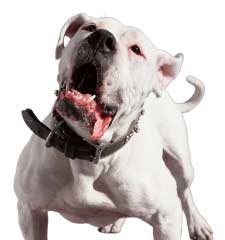
1. Launch CorelDRAW 8 and either load the cropped image
or load a bitmap and use the node editing tools to create
the cropped outline. This is what the image looks like
in "Normal View":
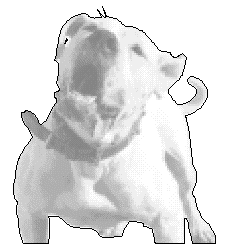
2. Click the pulldown on the toolbar to change to "Wireframe
View". This will reveal the cropped outline (mask).
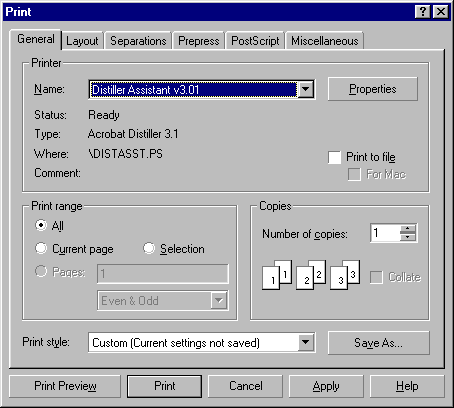
3. Click File > Print to reveal the humongous
print dialog. You need to check all the settings that
can affect the masked bitmap. First select the Distiller®
Assistant printer driver:
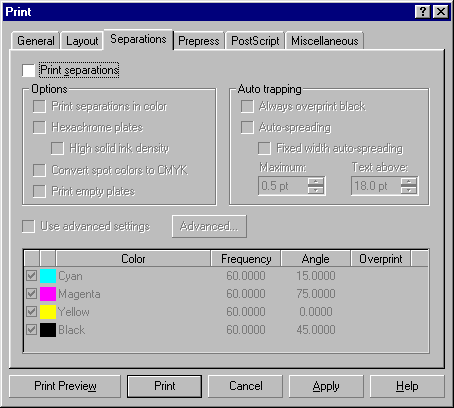
4. In the Separations tab, make sure the "Print
Separations" check box is unchecked (we want a
composite color output):
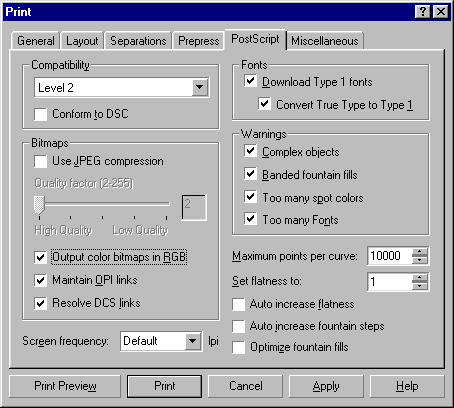
5. In the PostScript tab, there is a check box for "Output
color bitmaps in RGB". In this case we want
to make sure the bitmap gets printed as RGB. Also notice
the check box for JPEG compression. Make sure this is
not checked. The "Set flatness to:" is set
to 1 in this example. This is the setting for the mask.
The lower the number, the closer the mask will conform
to the curves.
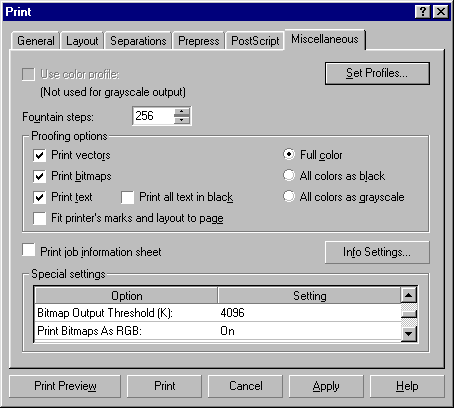
6. In the Miscellaneous tab there is a whole bunch of
stuff to check. In the "Special settings"
section there is a scrolling box with a lot of options.
Notice the one: "Print bitmaps as RGB". Next
click the "Set Profiles" button up there on
the right...there's no way around it...this is an Advanced
tutorial.
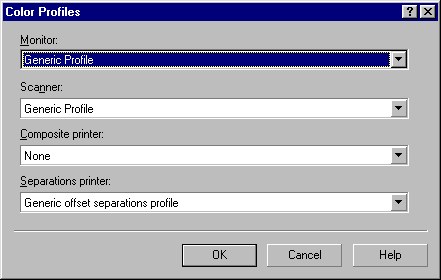
7. For now let's not use any color profiles. Make sure
the composite printer profile is set to "None".
This relates to step 4 above. If we had wanted separations,
you would check the profile for the separations printer.
Click "OK" then click the "Print"
button when you return to the Miscellaneous tab.
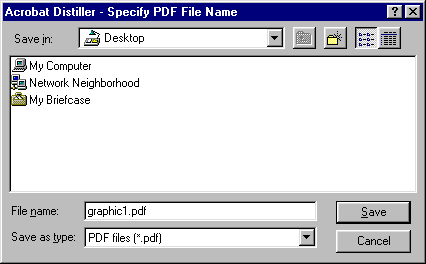
8. FINALLY! Distiller prompts you for a filename. Enter
a filename or accept the default, then click "Save".